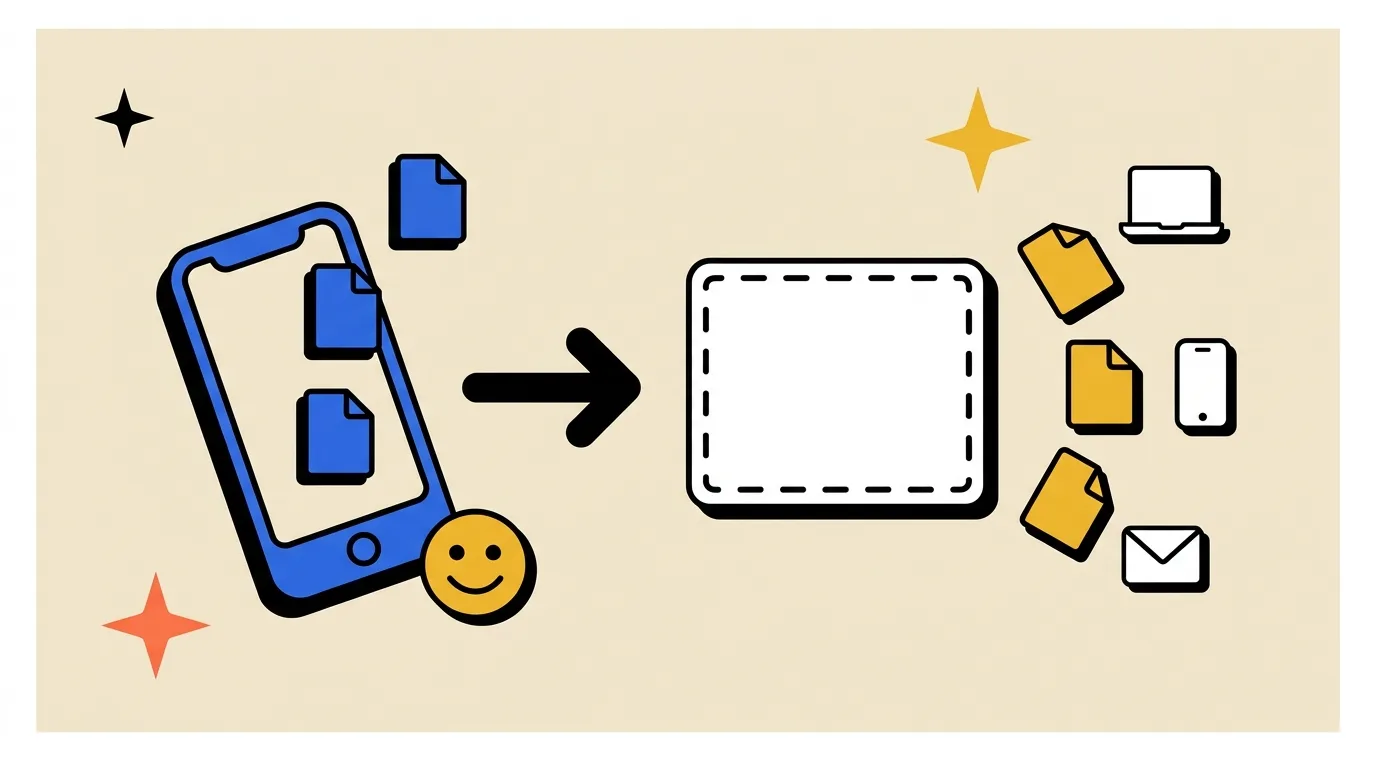
TL;DR — To convert HEIC to JPG online, open heic2jpg.net, drag your HEIC photos into the converter, and download the JPG output (single file or a ZIP for batches). Everything runs locally in your browser — no upload, no sign-up, no software install. The full walkthrough is below, plus native methods for Mac, Windows, and iPhone.
What Is HEIC and Why Your iPhone Saves Photos in This Format
HEIC stands for "High Efficiency Image Container." It's Apple's flavor of the broader HEIF (High Efficiency Image File Format) standard, which was finalized by MPEG in 2015. Apple adopted HEIC on iPhones and iPads starting with iOS 11 (2017), and it's been the default photo capture format ever since.
The appeal: a HEIC file is roughly half the size of a comparable JPG at the same visual quality, thanks to a more efficient compression method. That saves iCloud space, makes AirDrop faster, and means your camera roll takes up less of your phone's storage.
The catch: HEIC isn't universally supported. Windows requires extra codec packs. Android phones often can't open HEIC at all. Many web apps, design tools, and CMSs still expect JPG. The moment you try to share an iPhone photo outside the Apple ecosystem — to a colleague on Windows, to a printer kiosk, to an older photo editor — you'll hit a wall. That's why converting HEIC to JPG is one of the most common photo problems iPhone owners run into.
3 Ways to Convert HEIC to JPG — Quick Comparison
There's no single best method. The right one depends on where you are, what device you have, and how often you do this. Here are the three practical paths:
| Method | Best for | Speed | Privacy | Cost | Cross-platform |
|---|---|---|---|---|---|
| Online tool (heic2jpg.net) | Any device with a browser, any volume | ⚡ Instant (local) | 🔒 Files never leave device | Free | ✅ Any OS |
| Mac Preview | Mac users converting a handful of files | Fast | 🔒 Native | Free | ❌ Mac only |
| iPhone Settings → Most Compatible | Stopping HEIC at the source going forward | N/A (preventive) | 🔒 On-device | Free | ✅ Future photos shoot as JPG |
If you're on Windows or Android, the online tool is essentially the only no-friction option. If you're on Mac with a small batch, Preview works well. If you want to stop dealing with HEIC altogether, switching iPhone capture format is the long-term fix.
We'll walk through all three.
Convert HEIC to JPG Online in 3 Steps (Walkthrough)
This is the method that works on any device with a modern browser — Windows, Mac, Linux, Android, iPad, even an iPhone itself. There's nothing to install and no account to create.
Step 1 — Add Your HEIC Files
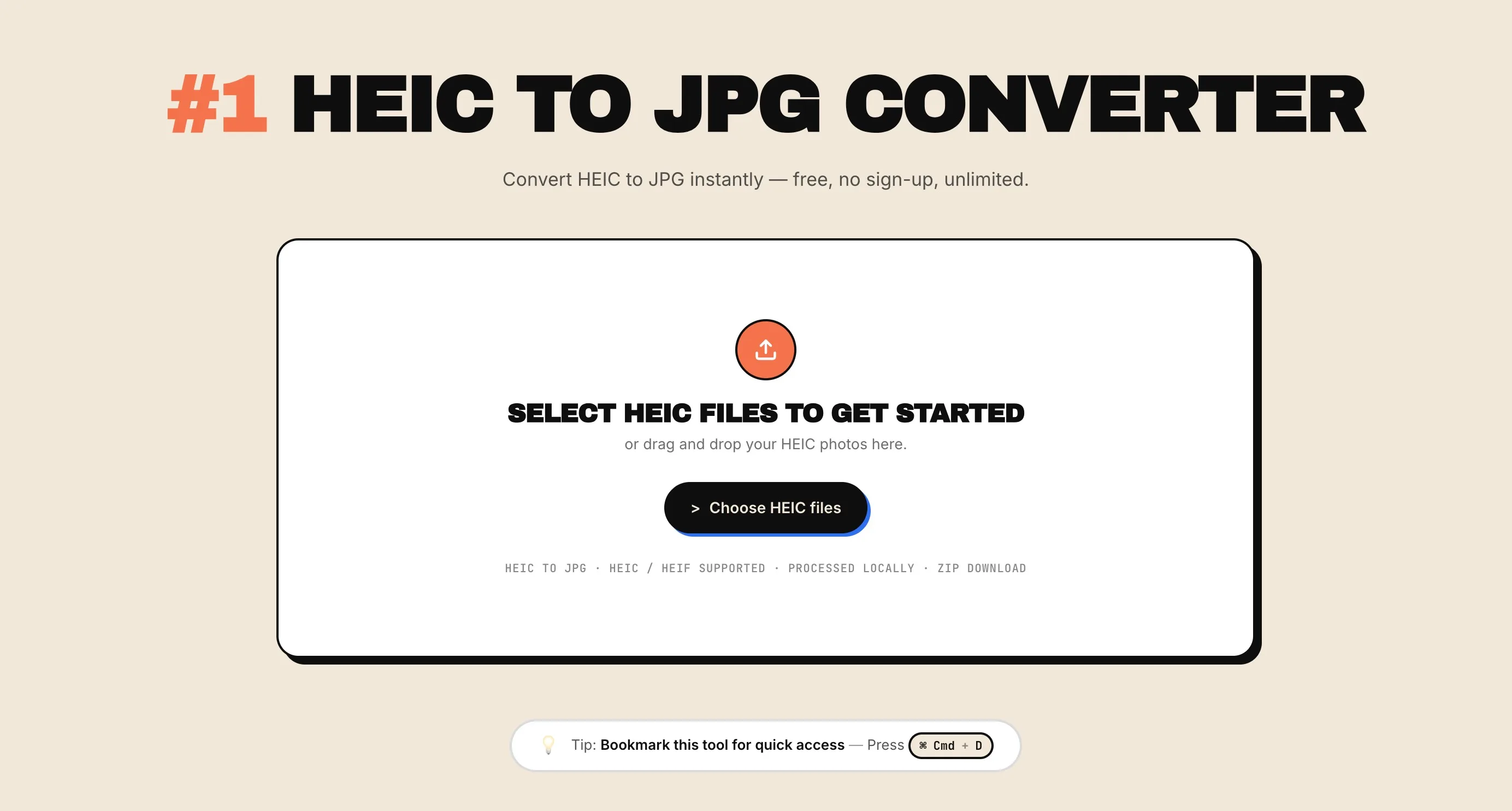
Open the HEIC to JPG converter. You'll see a drop zone that says "Select HEIC files to get started." You have two options:
- Click the drop zone and pick files from your device's file picker.
- Drag one or more HEIC photos directly onto the page. A whole folder works too.
Both .heic and .heif files are accepted. There's no file count cap from us — the only limit is how much your browser can hold in memory at once (modern laptops handle 200–300 typical iPhone HEICs in one batch without trouble).
Step 2 — Conversion Starts Automatically in Your Browser
As soon as files land in the queue, the converter starts processing each HEIC photo right inside your browser tab — nothing gets uploaded anywhere. There are no settings to configure and no "Convert" button to click — it just starts.
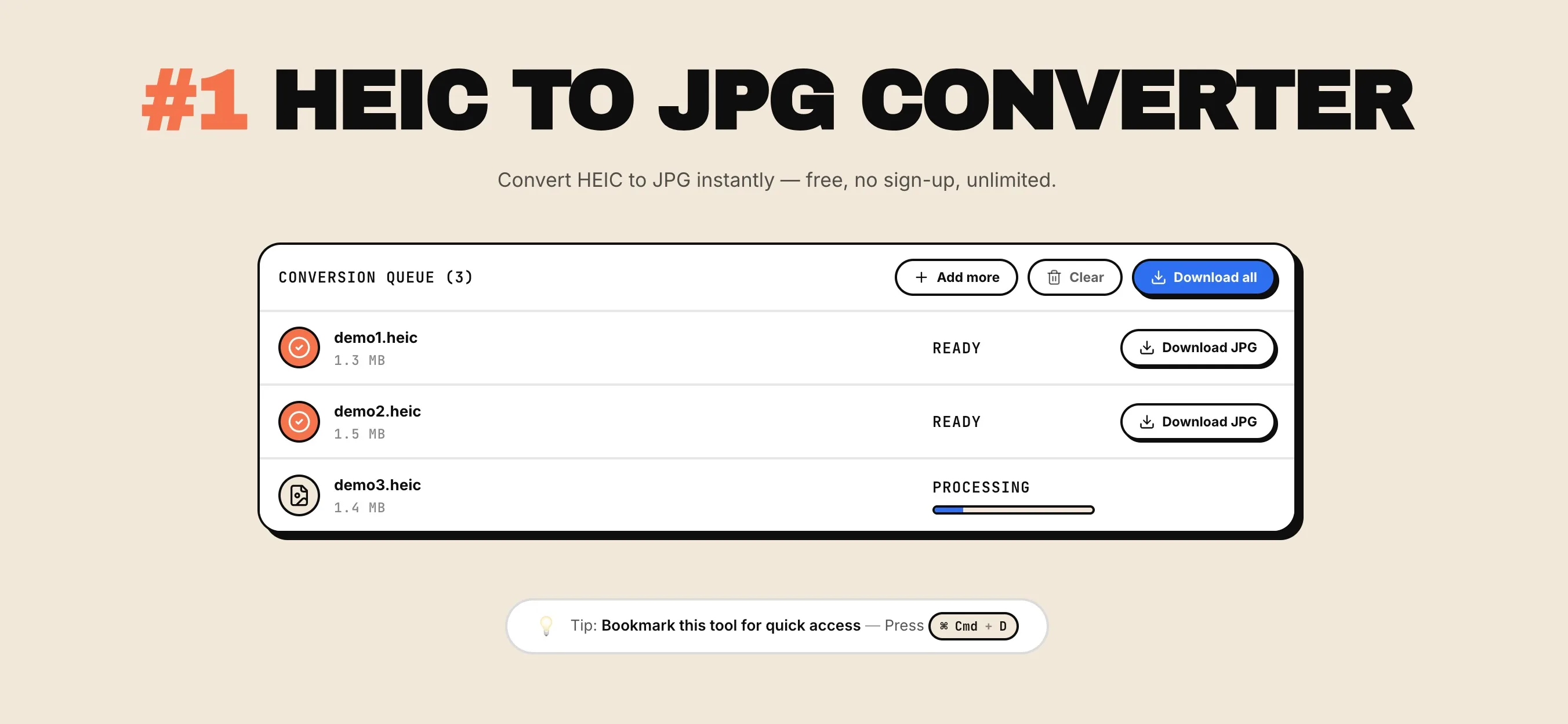
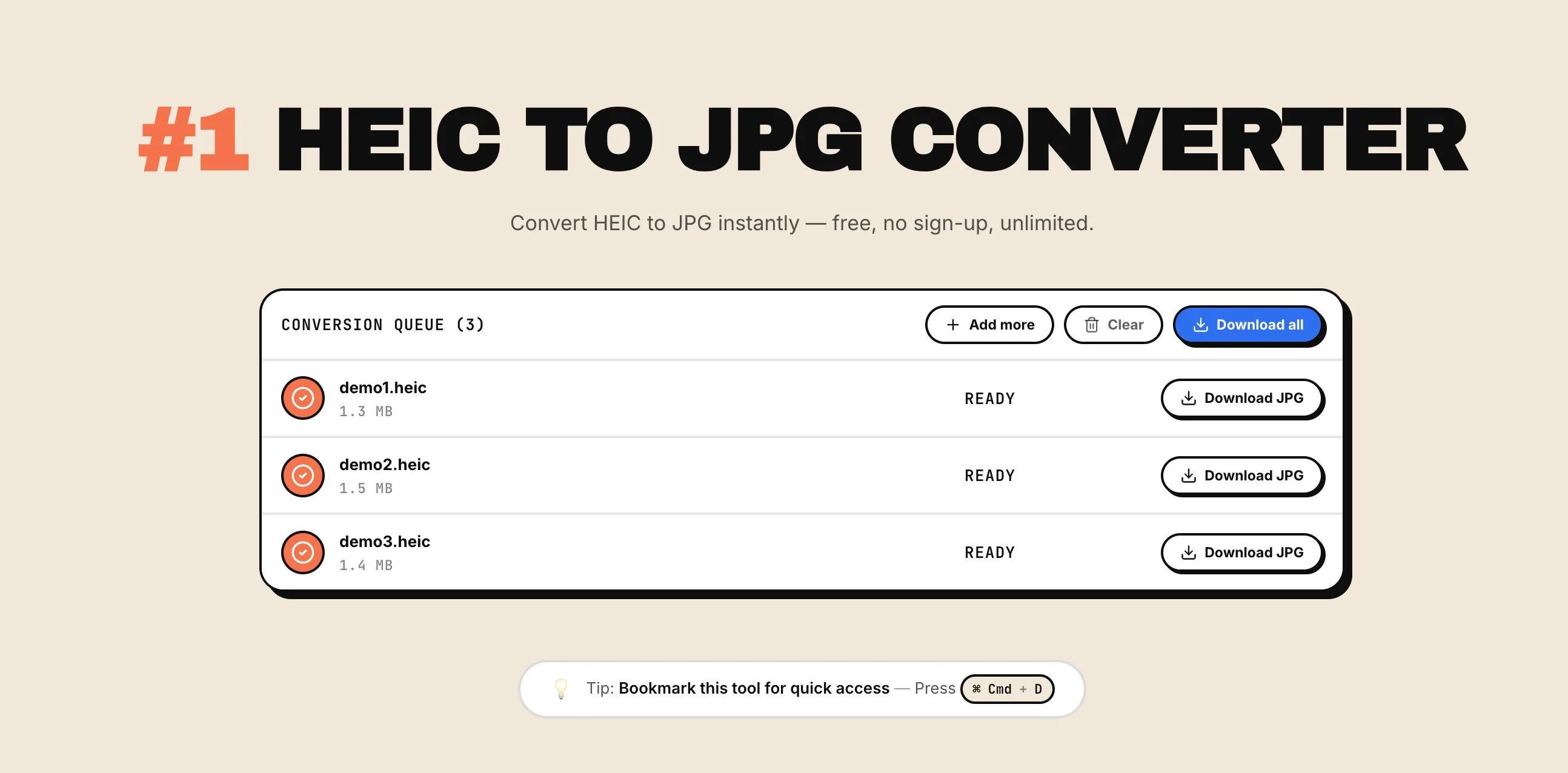
Each file shows a real-time status: Queued → Processing → Ready. A progress bar fills as the decoder works through the pixels. When a file is done, the row turns from neutral to a bright READY state with a download button.
The converter also reads the orientation tag embedded in your HEIC file (iPhones store rotation metadata rather than physically rotating pixels) and applies it before saving the JPG. That means your output photos come out right-side up — no manual rotation needed.
Step 3 — Download the JPG (Single File or Batch ZIP)
When everything's ready, you have two download options:
- Single file — click the per-row Download JPG button to grab one converted photo.
- Whole batch — click Download all at the top of the queue. You'll get one ZIP file named
heic-to-jpg-results.zipcontaining every converted JPG.
Close the tab when you're done. The queue clears, and since nothing was ever uploaded, there's nothing on any server to clean up — the conversion happened entirely on your device.
Convert HEIC to JPG on Mac (Built-In, No App Needed)
If you're on a Mac and just need to convert a handful of photos, Preview (the app that opens by default when you double-click an image) can do it natively. No download, no extra software.
Method A — Preview's Export As:
- Open the HEIC file in Preview.
- Go to File → Export…
- In the Format dropdown, choose JPEG.
- Adjust quality if needed, then click Save.
Method B — Quick Actions (faster for batches):
- Select one or more HEIC files in Finder.
- Right-click → Quick Actions → Convert Image.
- Pick JPEG as the format, set the size, and click Convert to JPEG.
The Quick Action approach is what you want for batches — it converts dozens of files in one click and saves them alongside the originals.
Limitation: Both methods are Mac-only. If you also need to convert HEICs sent to your Windows colleague, you'll be back to the online tool.
Convert HEIC to JPG on Windows
Windows added native HEIC support in late 2018 via two free Microsoft Store add-ons (HEIF Image Extensions and HEVC Video Extensions, though the latter costs a small fee). With those installed, the Photos app can open HEIC files. To convert to JPG:
- Open the HEIC in Photos.
- Click … (more options) → Save as.
- Choose JPG as the format and save.
Honestly, this workflow is fiddly. The codec install isn't always smooth, the Save As path is buried, and there's no built-in way to batch convert. For Windows users, the online HEIC to JPG converter is faster, free of codec dependencies, and handles batches in one go.
Stop Your iPhone From Saving HEIC (Optional)
If HEIC files are a constant headache and you don't need the storage savings, you can switch your iPhone to capture in JPG going forward. This doesn't convert your existing HEICs — those still need a converter — but every photo you take from this point on will be saved as JPG natively.
Steps:
- Open Settings on your iPhone.
- Tap Camera.
- Tap Formats.
- Choose Most Compatible (instead of "High Efficiency").
Your camera will now save JPG (and a more compatible video format too). The downside: photos take up about twice the storage. The upside: you can AirDrop, email, and upload anywhere without conversion.
A useful related trick: under Settings → Photos, the option Transfer to Mac or PC → Automatic will auto-convert HEICs to JPG when you import via USB, even if you keep capturing in HEIC.
HEIC vs JPG — Side-by-Side Comparison
| Feature | HEIC | JPG |
|---|---|---|
| Year introduced | 2017 (iOS 11) | 1992 |
| File size | ~50% smaller at equal quality | Baseline |
| Compression | HEVC (H.265), modern | DCT, older but ubiquitous |
| Browser support | Safari only, natively | All browsers |
| OS support | iOS, macOS, Win 10+ (with codec), limited Android | Universal |
| Web/app support | Patchy outside Apple ecosystem | Universal |
| Transparency | Supported | Not supported |
| Best for | iPhone storage, AirDrop, iCloud sync | Sharing anywhere, web upload, email |
Bottom line: HEIC is technically the better format. JPG is the more compatible format. For storing photos on your iPhone — HEIC wins. For sharing those photos with anyone outside Apple — JPG wins. That's why converting HEIC to JPG is a constant need.
Will I Lose Quality Converting HEIC to JPG?
The honest answer: visually, no. Technically, a tiny amount.
JPG and HEIC both use lossy compression, meaning some pixel-level detail is discarded to keep file sizes small. When you re-encode a HEIC into a JPG, you go through one more lossy pass. In theory, that compounds compression loss slightly.
In practice, with the HEIC to JPG converter at its default quality 92 JPG setting, the difference is indistinguishable to the human eye unless you zoom to 400% and pixel-peep highly compressed gradient areas (sky, skin, smoke). For every practical use — sharing, printing, social media, email — the JPG output is visually identical to the source HEIC.
What's preserved end-to-end:
- ✅ Full original resolution (no downscaling)
- ✅ Orientation applied correctly (no rotation surprises)
What doesn't carry over:
- ❌ HDR / Live Photo data — JPG can't carry these. The static "key frame" is preserved.
If you're working with photos for archival or print at very large sizes, keep the HEIC as your master and only convert to JPG at delivery time. For everyday sharing, the converted JPG is fine.
Frequently Asked Questions
Is the HEIC to JPG converter really free?
Yes — no sign-up, no watermark, and no daily limit from us. You can convert as many HEIC files as your browser can hold in memory.
Do my HEIC files get uploaded somewhere?
No. The conversion happens entirely inside your browser tab — your photos never leave your device, and closing the tab clears the queue.
Can I convert multiple HEIC files at once?
Yes. Drop a folder's worth into the queue, then either download each JPG individually or click Download all to grab a single ZIP.
What happens to the original HEIC file?
Nothing. The converter reads the file you select but doesn't modify or delete it. Your original .heic stays exactly where it was.
Will my JPG be rotated the wrong way?
No. The converter reads the orientation tag from your HEIC and applies it before saving the JPG, so the output keeps the correct orientation.
Why not just rename .heic to .jpg?
Renaming doesn't change the actual encoding — the file is still HEIC under the hood, just with a misleading extension. Most apps will refuse to open it or display garbage. A real conversion decodes the HEIC pixels and re-encodes them as JPG.
Can I convert HEIC to JPG directly on my iPhone?
Yes — open the HEIC to JPG converter in Safari on your iPhone, pick photos from your Photos library, and download the JPGs straight into Files. No app install needed.
Can I batch convert hundreds of HEIC files at once?
Yes — practically you're limited only by your device's RAM. A modern laptop comfortably handles 200–300 typical iPhone HEICs in one batch. For thousands of files at once, split into batches of a few hundred.
What's the difference between HEIC, HEIF, and HEVC?
HEIF is the broader image format standard (the container). HEIC is Apple's specific image variant of HEIF, using the HEVC codec for compression. HEVC (also called H.265) is a video codec — but the same compression math is what gives HEIC its file-size advantage. So: HEIF is the container, HEVC is the compression, HEIC is what Apple calls the combined output.
Start Converting Now
Ready to convert? Open HEIC to JPG →, drop your iPhone photos in, and download the JPGs in seconds. Free, no sign-up, runs entirely in your browser.